MariaDB Linuxon

MySQL adatbázis teljesen free változata.

MariaDB

Verzió 10.11.13-MariaDB-ubuntu-0.24.04. adatbázis.
Installing MariaDB Server

sudo apt update
sudo apt install mariadb-server mariadb-client
sudo mariadb-secure-installation
sudo systemctl status mariadb

jelszó:

mariadb -h localhost -u root -p
Enter password: <password>
SELECT VERSION(), CURRENT_DATE;
CREATE DATABASE  <database>;
sudo systemctl status mariadb
sudo mysqladmin version

Fontos könyvtárak, fájlok:
/etc/mysql/conf.d/mysql.conf
/etc/mysql/conf.d/mysql.conf/mysql.conf
/var/run/mysqld
Parancsok, start,stop, restart.

sudo systemctl start mariadb
sudo systemctl stop mariadb
sudo systemctl restart mariadb

A -hoz létrehozása:

sudo mariadb
// localhost
mariaDB>CREAT USER '<user1>'@'localhost' IDENTIFIED WITH 'mysql_native_password' BY '<passworduser1>';
mariaDB>FLUSH PRIVILEGES;
// for all IP.
mariaDB>CREAT USER '<user1>'@'%' IDENTIFIED WITH 'mysql_native_password' BY '<passworduser1>';
mariaDB>FLUSH PRIVILEGES;

Userek megnézése és kilépés:

mariaDB>select user from mysql.user;
mariaDB>exit

Távoli (remote server) elérés:
How to enable Remote access to your MariaDB
Ellenőrzés:

ps -ef | grep -i mysql
// ezt kapjuk vissza:
mysql        595       1  0 04:17 ?        00:00:00 /usr/sbin/mysqld
root        1350    1337  0 04:22 pts/0    00:00:00 grep --color=auto -i mysql

Alapállapotban localhost-on listening-en fut.

netstat -ant | grep 3306
// ezt kapjuk vissza:
tcp        0      0 127.0.0.1:3306          0.0.0.0:*               LISTEN

Megnyitunk egy text szerkesztőt, így nano/mc/vim stb.:

nano /etc/mysql/my.cnf
vagy
sudo nano /etc/mysql/mariadb.conf.d/50-server.cnf

Megváltoztatjuk a bind-address-t 127.0.0.1 -ról 0.0.0.0 -ra:

bind-address = 0.0.0.0

Majd, ha ezzel elkészütünk, MariaDB restart-oljuk, és megnézzük a bind-adress-t:

sudo systemctl restart mariadb
netstat -ant | grep 3306
// ezt kapjuk vissza:
tcp        0      0 0.0.0.0:3306            0.0.0.0:*               LISTEN

Grant Access to a User from a Remote System:
If you want to grant access to all remote IP addresses on wpdb as wpuser, use % instead of IP address as shown below:

MariaDB > GRANT ALL ON <database>* to <user1>'@'%' IDENTIFIED BY <'password>' WITH GRANT OPTION;

Karakterkészlet berakása az adtabázisba:

MariaDB > SHOW COLLATION LIKE 'latin2%';
MariaDB > SHOW COLLATION LIKE 'utf8mb4_unicode_%';
mariaDB > exit

Tűzfal Firewall konfigurálása:

sudo ufw allow from <IP address> to any port 3306
sudo ufw allow 3306
sudo ufw reload

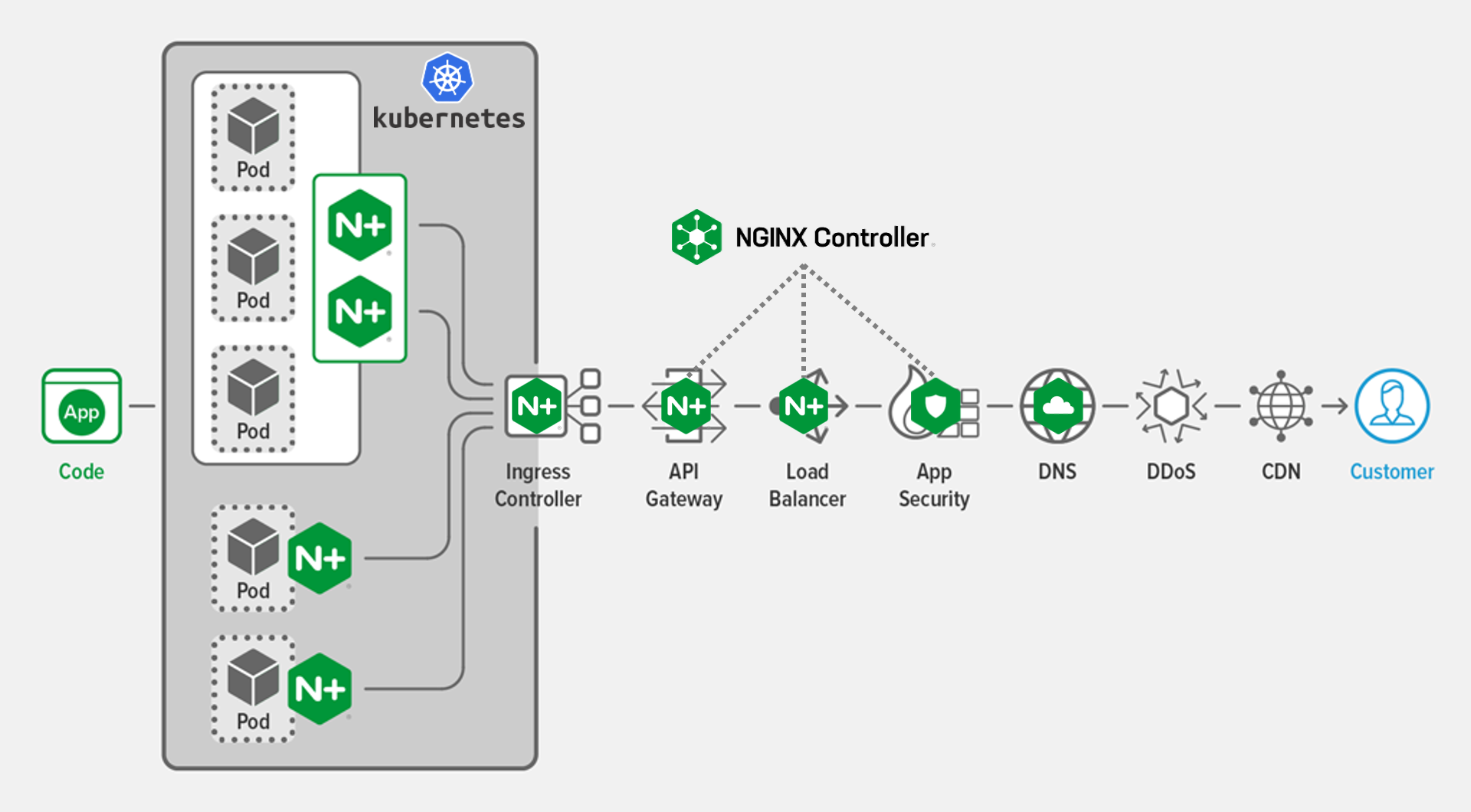
Nginx és Nginx Plus webszerver konigurálása Linuxon.

Linuxon két webszerver program terjedt el, apache és az újabb a nginx.
NGINX
Configuring NGINX and NGINX Plus as a Web Server NGINXPlus Én mindkettőt használom, most az nginx webszerver konigurálását mutatom be a linuxon.
Mindkettő használható a Windows operációs rendszer alatt is.
Új programok installálása elött ajánlott frissíteni a linux rendszert.

sudo apt update
sudo apt full-upgrade

Jön az nginx program intallálása.

sudo apt-get install nginx

Konigurációhoz használt file-ok.

/etc/nginx/nginx.conf
/etc/nginx/sites-avaliable/foodsdbcibus.eu
/etc/nginx/sites-enabled/@foodsdbcibus.eu  // link
/etc/nginx/snippets/self-signed.conf
/etc/ssl/certs/nginx.cert  // ssl
/etc/ssl/private/nginx.key // ssl
/etc/nginx/dhparam.pem //ssl

parancsok:

sudo systemctl stop nginx 
sudo systemctl start nginx 
sudo systemctl restart nginx 
sudo nginx -t   // nginx.conf helyességét megnézi
sudo systemctl reload nginx 
sudo systemctl disable nginx 
sudo systemctl enable nginx 
sudo  systemctl status nginx.service 

Regisztráltam a VPS Linux szerveremhez egy host nevet: foodsdbcibus.eu
/etc/hostname tartalma:

foodsdbcibus.eu

/etc/resolv.conf:

nameserver 81.0.107.10
nameserver 1.1.1.1

Konfigurációs fájl tartalma: /etc/nginx/nginx.conf :

user www-data;
worker_processes auto;
pid /run/nginx.pid;
error_log /var/log/nginx/error.log;
include /etc/nginx/modules-enabled/*.conf;

events {
    worker_connections 768;
    # multi_accept on;
}

http {
    client_header_timeout  3m;
        client_body_timeout    3m;
        send_timeout           3m;

        client_header_buffer_size    1k;
        large_client_header_buffers  4 4k;

        gzip on;
        gzip_min_length  1100;
        gzip_buffers     4 8k;
        gzip_types       text/plain;

        output_buffers   1 32k;
        postpone_output  1460;

        sendfile         on;
        tcp_nopush       on;
        tcp_nodelay      on;

        keepalive_timeout  75 20;

    ssl_session_cache   shared:SSL:10m;
        ssl_session_timeout 10m;

    types_hash_max_size 2048;

    # server_tokens off;

    # server_names_hash_bucket_size 64;
    # server_name_in_redirect off;

    include /etc/nginx/mime.types;
    default_type application/octet-stream;

    ##
    # SSL Settings
    ##

    ssl_protocols TLSv1 TLSv1.1 TLSv1.2 TLSv1.3; # Dropping SSLv3, ref: POODLE
    ssl_prefer_server_ciphers on;

    ##
    # Logging Settings
    ##

    access_log /var/log/nginx/access.log;

    ##
    # Gzip Settings
    ##  

    # gzip_vary on;
    # gzip_proxied any;
    # gzip_comp_level 6;
    # gzip_buffers 16 8k;
    # gzip_http_version 1.1;
    # gzip_types text/plain text/css application/json application/javascript text/xml application/xml application/xml+rss text/javascript;
    ##
    # Virtual Host Configs
    ##

    include /etc/nginx/conf.d/*.conf;
    include /etc/nginx/sites-enabled/*;
}


#mail {
#   # See sample authentication script at:
#   # http://wiki.nginx.org/ImapAuthenticateWithApachePhpScript
#
#   # auth_http localhost/auth.php;
#   # pop3_capabilities "TOP" "USER";
#   # imap_capabilities "IMAP4rev1" "UIDPLUS";
#
#   server {
#       listen     localhost:110;
#       protocol   pop3;
#       proxy      on;
#   }
#
#   server {
#       listen     localhost:143;
#       protocol   imap;
#       proxy      on;
#   }
#}

/etc/nginx/sites-available/foodsdbcibus.eu tartalma:

server {  
#   listen 80 default_server;           
    listen 443 ssl;
    listen [::]:443 ssl;
        server_name foodsdbcibus.eu www.foodsdbcibus.eu;
 #  server_name 192.168.1.10;
        client_max_body_size 64M;
    include /etc/nginx/snippets/self-signed.conf;
        keepalive_timeout   70;

    access_log   /var/log/nginx.access_log;

#       root /var/www/foodsdbcibus.eu;  
    root /home/cibus/public_html/foodsdbcibus.eu;
        index index.php index.html index;

    location /barmi {
            proxy_set_header Host $host;
            proxy_pass http://127.0.0.1:3001;
            proxy_http_version 1.1;
            proxy_set_header Upgrade $http_upgrade;
            proxy_set_header Connection "upgrade";  
        proxy_cache_bypass $http_upgrade;
            proxy_set_header X-Forwarded-For $remote_addr;
            proxy_set_header X-Real-IP $remote_addr;
            proxy_connect_timeout 60s;
            proxy_send_timeout 60s;
            proxy_read_timeout 60s;
            proxy_next_upstream error timeout;
        }

    location /testdbnode {
       #    proxy_set_header X-Forwarded-For $proxy_add_x_forwarded_for;
            proxy_set_header Host $host;
            proxy_pass http://127.0.0.1:3000;
            proxy_http_version 1.1;
            proxy_set_header Upgrade $http_upgrade;
            proxy_set_header Connection "upgrade";  
        proxy_cache_bypass $http_upgrade;
            proxy_set_header X-Forwarded-For $remote_addr;
            proxy_set_header X-Real-IP $remote_addr;
            proxy_connect_timeout 60s;
            proxy_send_timeout 60s;
            proxy_read_timeout 60s;
            proxy_next_upstream error timeout;
        }

#       location / {
#           try_files $uri $uri/ =404;
#       }

    error_page  404  /404_1.html;

    location = /404_1.html {
                root  /spool/www;
        }

        location ~ \.php$ {
            include snippets/fastcgi-php.conf;
            fastcgi_pass unix:/var/run/php/php8.3-fpm.sock;
            fastcgi_param SCRIPT_FILENAME $document_root$fastcgi_script_name;
            include fastcgi_params;
        }
    location ~* ^/foodsdbcibus/images/(.+\.(jpg|jpeg|png|ico|webp))$ {        
        root /home/cibus/images;    
        expires      30d;
    }

        location ~* \.(jpg|jpeg|gif)$ {
                root         /spool/www;
                access_log   off;
                expires      30d;
        }       

    location ~* ^/phpmyadmin/(.+\.(jpg|jpeg|gif|css|png|js|ico|html|xml|txt))$ {        
        root /usr/share/;    
    }
    location /phpinfo { 
#       root /var/www/foodsdbcibus.eu/phpinfo; 
#       root /home/cibus/public_html/foodsdbcibus/eu/phpinfo;
        alias /home/cibus/public_html/phpinfo;
        index index.php;
        try_files $uri $uri/ /index.php; 
#       location ~ \.php$ { 
#           include snippets/fastcgi-php.conf; 
#           fastcgi_pass unix:/var/run/php/php8.3-fpm.sock; 
#           include fastcgi_params;           
#           fastcgi_param SCRIPT_FILENAME $request_filename;           
#           fastcgi_param SCRIPT_NAME $fastcgi_script_name;
#       } 
    }
    location /test1 { 
        alias /home/cibus/public_html/test1;
    }
    location /viewdb {
        alias /home/cibus/public_html/viewdb;
    }
    location /devdjango1 {
        alias /home/ptiszai/Public/devdjango1;   
    }
}

server {
   listen 80;
    #listen [::]:80;
    server_name foodsdbcibus.eu www.foodsdbcibus.eu;
    #location / {
   #     proxy_set_header X-Forwarded-For $proxy_add_x_forwarded_for;
   #     proxy_set_header Host $host;
   #     proxy_pass http://127.0.0.1:3000;
   #     proxy_http_version 1.1;
   #     proxy_set_header Upgrade $http_upgrade;
   #     proxy_set_header Connection "upgrade";
    #}
    return 301 https://$server_name$request_uri;
}

SSL titkosítás konfigurációja.
Mi az SSL /TLS Bizonyítvány?
Két lehetőség lehet a web oldal titkosítására, az első magad készíted el a tanúsítványt, de akkor minden browserbe fel kell tölteni a public kulcsot, vagy hivatalos oldalról töltse be azt, de azok pénzbe kerülnek, ilyenkor a browserekbe automatikusan letöltődnek, és az oldalt hitelesítik.
Manuálisan le kell tölteni, és installálni a web szerverre az openssl programot:
Az openssl csomag letöltése és installálása:

sudo apt-get install openssl

Ezzel nem foglalkozom továbbiakban, mert bonyolult, és a felhasználó nem fogja a browserébe installálni az elkészült tanúsítványt.
Én is megvettem a tanúsítványt.
Neve :
RapidSSL® Certificate
Itthon is megvehető forintért web hostingoknál.
A Rapid SSL tanúsítvány ára 1 évre nettó 9000 Ft volt. (Versanus)
Megvásárlása után emailben kaptam 4 db base64-es text részt, amiből az első kettőt használtam fel az nginx webszerver "/etc/nginx/snippets/self-signed.conf" fájlban.

PRIVATE KEY: neve lett nálam "rapid_key.key"
-----BEGIN RSA PRIVATE KEY----- 
....... base64......
-----END RSA PRIVATE KEY-----
CRT: neve lett nálam "rapid_crt.crt""
-----BEGIN CERTIFICATE-----
....... base64......
-----END CERTIFICATE-----

A két fájlt bemásolom a helyükre.
"rapid_key.key" -> "/etc/ssl/private/rapid_key.key".
"rapid_crt.crt" -> "/etc/ssl/certs/rapid_crt.crt".
A "/etc/nginx/snippets/self-signed.conf" fájlba beraktam.

ssl_certificate /etc/ssl/certs/nginx.crt;
ssl_certificate_key /etc/ssl/private/nginx.key;
ssl_protocols TLSv1.2 TLSv1.3;
ssl_prefer_server_ciphers on;
ssl_ciphers ECDHE-RSA-AES256-GCM-SHA512:DHE-RSA-AES256-GCM-SHA512:ECDHE-RSA-AES256-GCM-SHA384:DHE-RSA-AES256-GCM-SHA384:ECDHE-RSA-AES256-SHA384:TLS_AES_256_GCM_SHA384;
ssl_session_timeout 10m;
ssl_session_cache shared:SSL:10m;
ssl_session_tickets off;
ssl_stapling on;
ssl_stapling_verify on;
resolver 8.8.8.8 8.8.4.4 valid=300s;
resolver_timeout 5s;
add_header X-Frame-Options DENY;
add_header X-Content-Type-Options nosniff;
add_header X-XSS-Protection "1; mode=block";
ssl_dhparam /etc/nginx/dhparam.pem;
ssl_ecdh_curve secp384r1;

Teszteljük a configurációs fájlt:

sudo nginx -t  

Hibát nem jelez, utána restart web szerver:

sudo service nginx restart

PHP telepítése.

sudo apt install php8.3 php8.3-cli php8.3-fpm
php -v
PHP 8.3.6 
sudo apt install php8.3-{mysql,curl,xsl,gd,common,xml,zip,xsl,soap,bcmath,mbstring,gettext,imagick}

PHP helye:
/etc/php/
/var/run/php/

sudo service nginx restart

Sikerült.
Elkészült:
Új honlapom ami SSL/TLS bizonylattal védett :
foodsdbcibus.eu
phpinfo

Windows Display Orientation

Windows Display Orientation Desktop.

Nehézkes a Windows Deaktop esetén a képernyő horizontal / vertical módjának az állítása, ezért készült a program.
Windows .NET Framework 4.8 Instantly flip screen orientation horizontal / vertical with a GUI command.
Because switching between landscape and portrait mode using Display settings on windows takes too many clicks.
Works with multiple monitors and all display orientation modes (landscape, landscape inverted, portrait, portrait inverted).
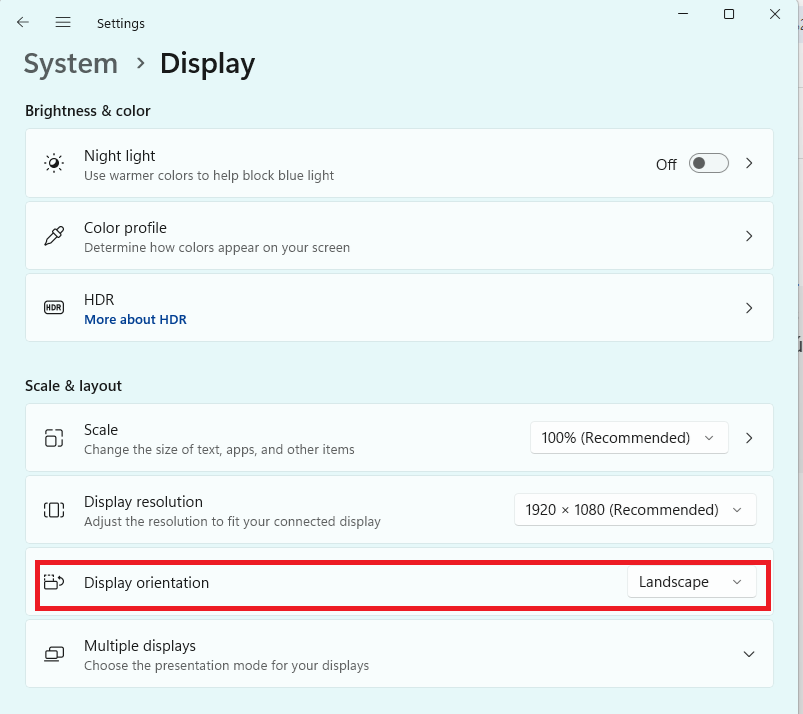
Preview oroginal Windows 11 Desktop -> System -> Display

Display

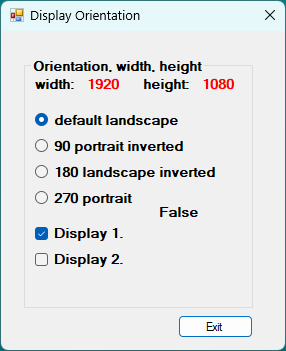
Program képe:

program

4 arguments függvény argumentum kell:
RotateDisplay.cs:

Running(uint deviceID_a, uint rotateMode_a, ref int width_a, ref int height_a) { ... };
  • argument 1 : deviceID_a (0: first main screen, 1: second screen, 2: third etc.)
  • argument 2 : rotateMode_a rotation (0: default landscape, 90: portrait inverted, 180: landscape inverted, 270: portrait)
  • argument 3 : get Width width_a
  • argument 4 : get Height height_a

    hotkeys :
    Billentyűk:
    ESC key : exit
    F2 key : back to default landscape

    .NET Framework 4.8 redistributable :
    NET4.8
    notes :
  • doesn't need to be run as admin
  • rotation can only be set to 4 available values (0, 90, 180, 270), any other value won't work.
  • can't set screen xy position in relation to other screens as possible with Display settings menu.

    Forráskód:
    github
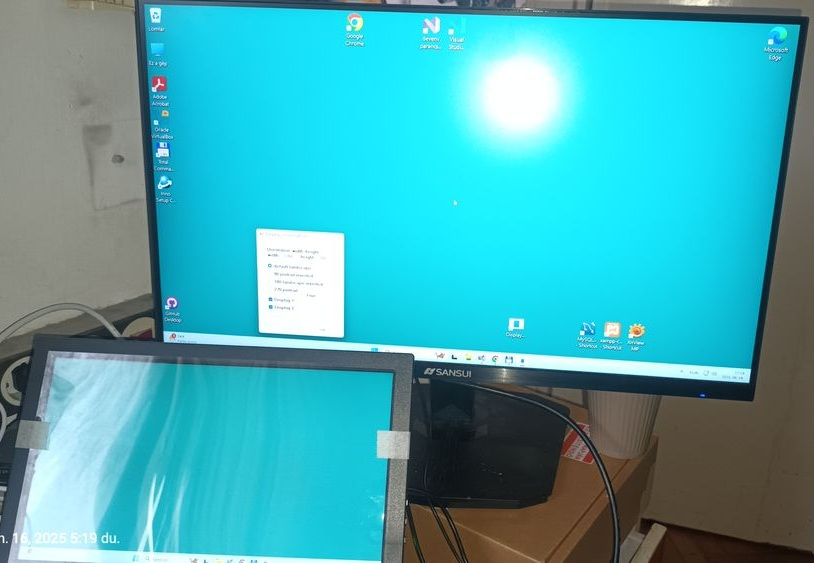
    0 degrees:
    photo1

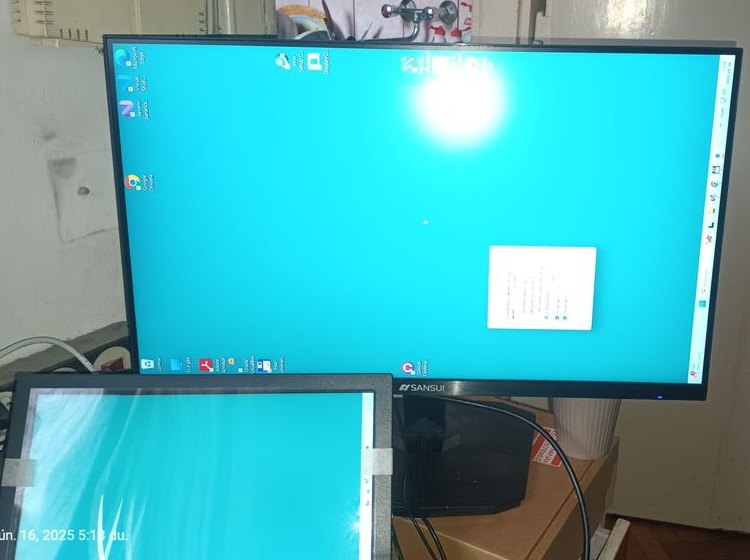
    90 degrees:
    photo2

    180 degrees:
    photo3

    270 degrees:
    photo4

Install Uno (WPF) C# on Rpbb5

WPF Windows Presentation Foundation. Uno C# modern framework rendszere.
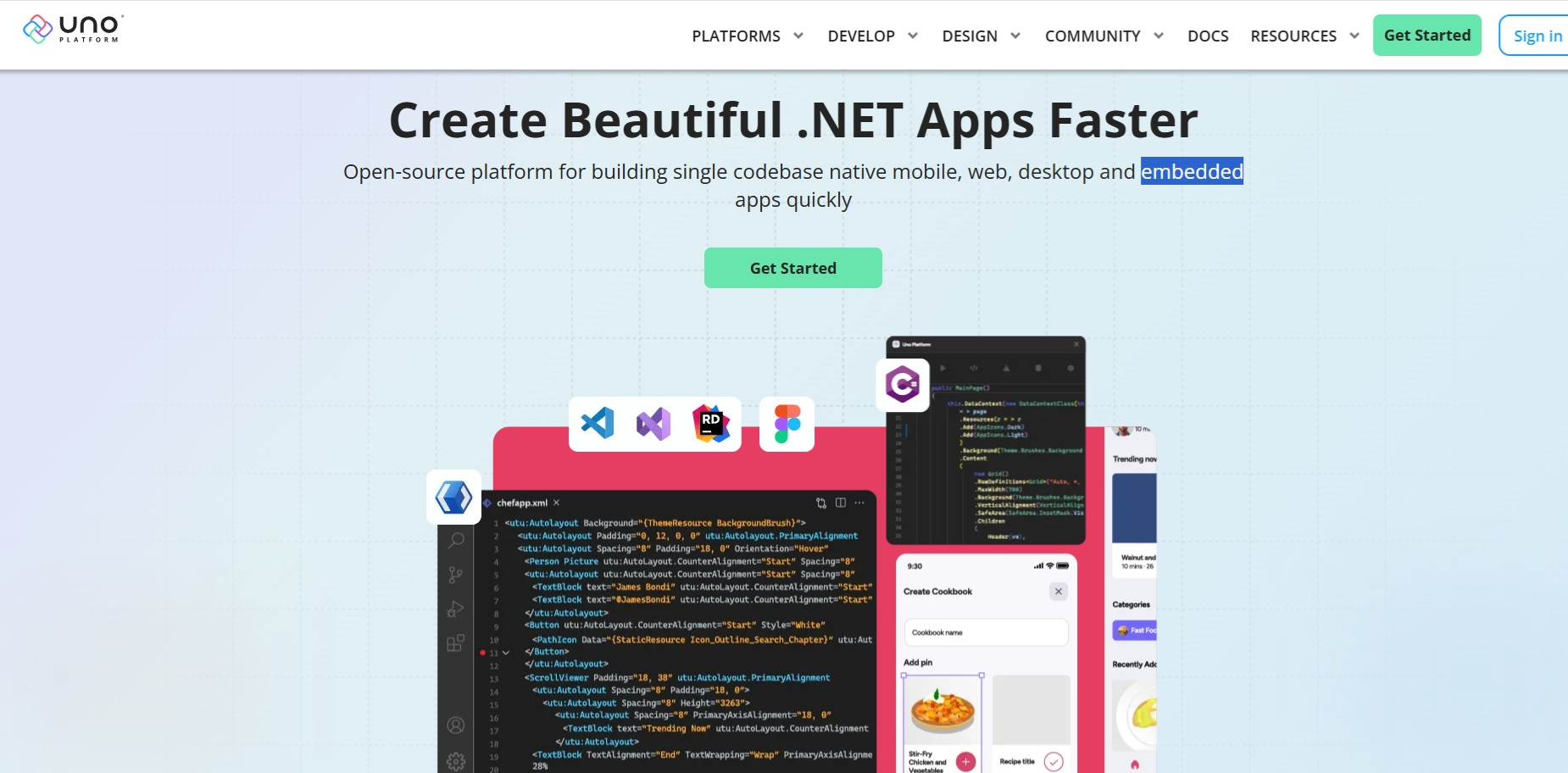
Uno egy muliplatform-os WPF változata, Open-source framework.
Platformok amin futnak uno programok, és fejleszthető kódbázisok :
windows desktop, android, ios mobil, linux, macOs, web, embedded iot rendszerek.
Uno framework

uno1

Felraktam Visual Studi Code-t, és a .NET 9.0 rendszert a blog szerint és a link szerint:
Getting Started with Uno Platform and the Raspberry Pi
A végén futtattam a

shell uno-chek 

parancsot Lépésaek:
Install and run uno-check
1.) Make sure you have the dotnet SDK installed. Blogban olvasható.
2.) Open a command-line prompt. If you're on Windows, you can run Windows Terminal if you have it installed, or else Command Prompt or Windows Powershell from the Start menu. If you're on Mac, you can run the Terminal.
3.) Install the tool by running the following command from the command prompt:.

shell  dotnet tool install -g uno.check

To update the tool, if you already have an existing one:.

shell  dotnet tool update -g uno.check

4.) Run the tool from the command prompt with the following command:

shell  uno-check

For additional options, see below.
5.) If you get any errors or warnings, run the provided fix, or follow the provided instructions. Run uno-check again to verify that the fixes worked.
6.) Once uno-check gives you the green light, you can get started:

uno1

Próbálkozások után a végső megoldás ez lett:

.\uno-check --verbose –-logfile unolog --skip openjdk --skip androidsdk –skip androidemulator --dev 
--nuget-sources --dotnet-version --dotnet-pre true 


Install .NET9.0 on Rpbb5

Minden frissítése:

sudo apt update
sudo apt install code
wget https://packages.microsoft.com/config/debian/12/packages-microsoft-prod.deb -O packages-microsoft-prod.deb
sudo dpkg -i packages-microsoft-prod.deb
rm packages-microsoft-prod.deb

Telepítse a SDK-t

sudo apt-get install -y dotnet-sdk-9.0
sudo apt-get install -y dotnet-runtime-9.0

NET9.0:

Microsoft első source kódja.

Kiadta legeslegelső szoftvere, az Altair BASIC forráskódját a Microsoft.
Holnap lesz kereken 50 éve annak, hogy Bill Gates és Paul Allen megalapították a Micro-Soft-ot.
Ebből az alkalomból az alapítópáros még életben lévő tagja egy nagyon "kocka" dolgot csinált: Gates ugyanis honlapján át kiadta és bárki számára elérhetővé tette a vállalat legeslegelső szoftverének forráskódját.
Utóbbi nem más, mint az Altair BASIC, aminek fejlesztésére és értékesítésére hozták létre anno a vállalatot 1977 április 4-én.
Akkoriban ugyanis a számítógépek még beépített operációs rendszer és szoftver nélkül érkeztek - így pl. BASIC értelmező sem volt bennük, mint később mondjuk a Commodore 64-ben és más mikroszámítógépekben.
Altair BASIC.
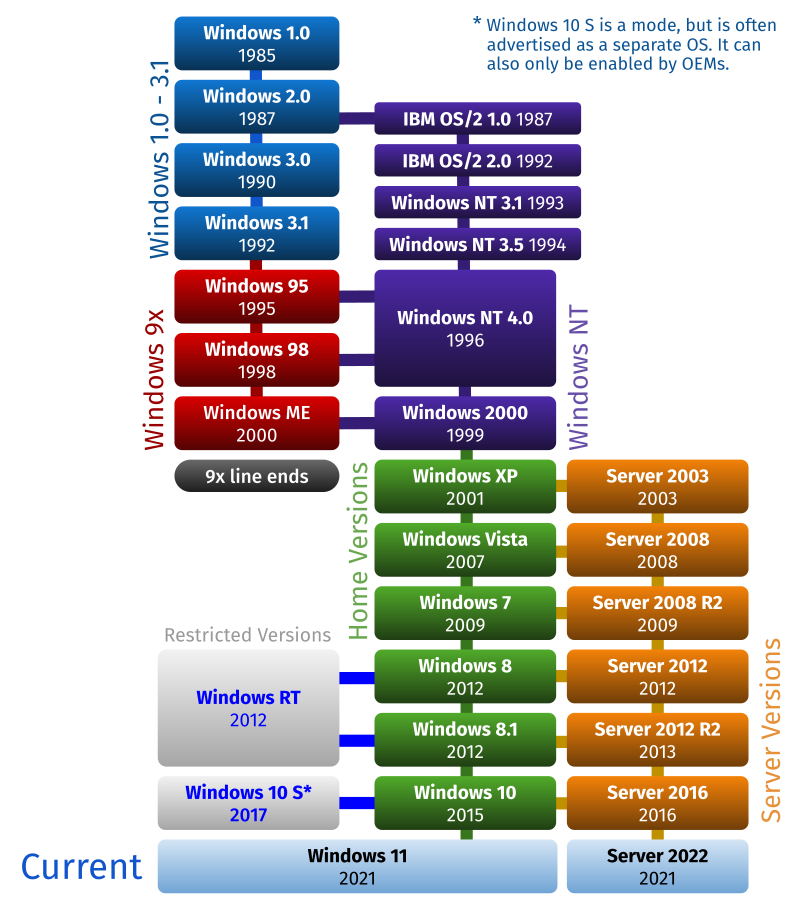
Ebből lett a Windows 11 pár tíz év múlva.🤣
Itt letölthető:
billgates

Linux distribúciók

Linux distribúciók.
Találtam egy érdekes honlapot ,ahol linux disztribúciókat felraktak cloud VPS szerverekre, és lehet tesztelni megírt divereket.
Test drive Linux distros online
Nem csak driver tesztelésre jó a honlap, hanem kiválasztja a felhasználó melyik linux disztibúciót akarja használni dolgozni, megtanulni, játékra, fejlesztére stb..
Van köztük kezdő/közép/haladó változat.
Windows-on egy darab ablakezelő (desktop) ismerünk pl. Winows 11. Linuxon számtalant, ahol a core operációs rendszer Linux mindenhol, a felhasználó választja ki, melyik tetszik/megfelelő neki.
Létezik minimalizált, közép és teljes full linux.
Disztribúcióknál vannak sok csomagot felrakók és keveset.
A pro (haladó) felhasználóknak ajánlom:
Arch, Void, Gento.
Kezdő felhasználóknak:
Pop OS, Manjaro, Linux Mind Debian.
Vagy ha megszokottakat akkor Ubuntu, Debian stb, de ezek bonyolultak.
Szerverre Debian, Arch, Ubuntu, Alma, Slackware, tehát a nagyokat a frissítések miatt.
Lényeg az, a jó disztribúció amit sokan használnak, különben magadra maradsz a frssítéseknél, és bármi problémánál.
Fontos a csomagkezelő, ez olyan mint a windows-nál az apps store, de több nála, mert minden frissül a könyvtárak is. pl. vulkán, a kernelt (OS) is, tehát mindent stb..
Csomagkezelő rendszerek vannak pl. deb, arch, rpm meg vannak saját csomagkezelők distroknak pl. void, alma stb.
Stabil és rolling release. Stabil release az pl. 2 évenként frissül egy nagyot, a rolling (gördülő) release az folyamatosan ahogy kijön egy új változat frissül.

linux1

linux2

linux3

linux4

linux5

Debian linux OS set configs and apps installed to the Rpbb5

Debian linux beállítások.
user name: ptiszai
password: xxxx

sudo adduser ptiszai 

To view the current status of a user account:

sudo chage -l ptiszai

Minden frissítése:

sudo apt update
sudo apt full-upgrade

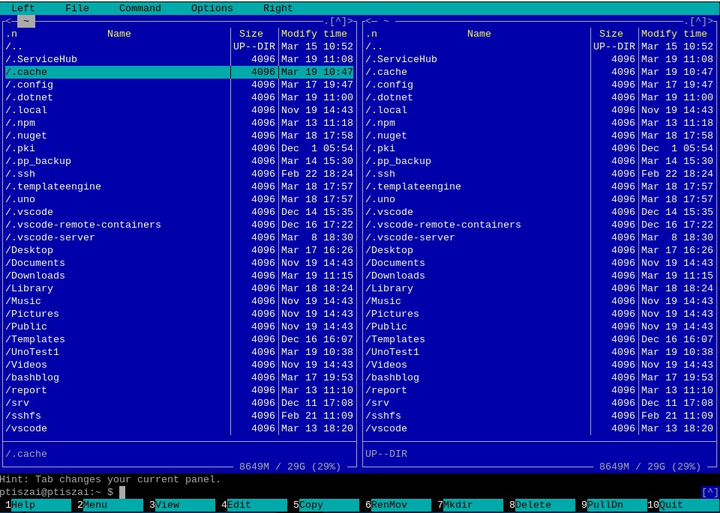
Using the Midnight Commander on Linux Terminal Explorer:
MC:

apt-get install mc

MC

VSFTP
File Transfer Protocol (FTP) is a TCP protocol for downloading files between computers.
VSFTP

sudo apt install vsftpd

By default vsftpd is not configured to allow anonymous download. If you wish to enable anonymous download edit /etc/vsftpd.conf by changing:Anonymous FTP Configuration.

anonymous_enable=YES
sudo mkdir -p /home/ptiszai/srv/kapott
sudo mkdir -p /home/ptiszai/srv/sended
sudo systemctl restart vsftpd.service

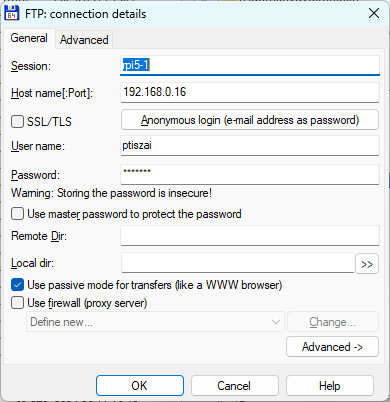
PC Windows 11 Total Commander is configurated:
Host name: 192.168.0.16 (wifi, 2.4 Ghz), beállítani a 192.168.0.1 T-Home routeren.
User name: ptiszai
password: xxxx

ttconfig

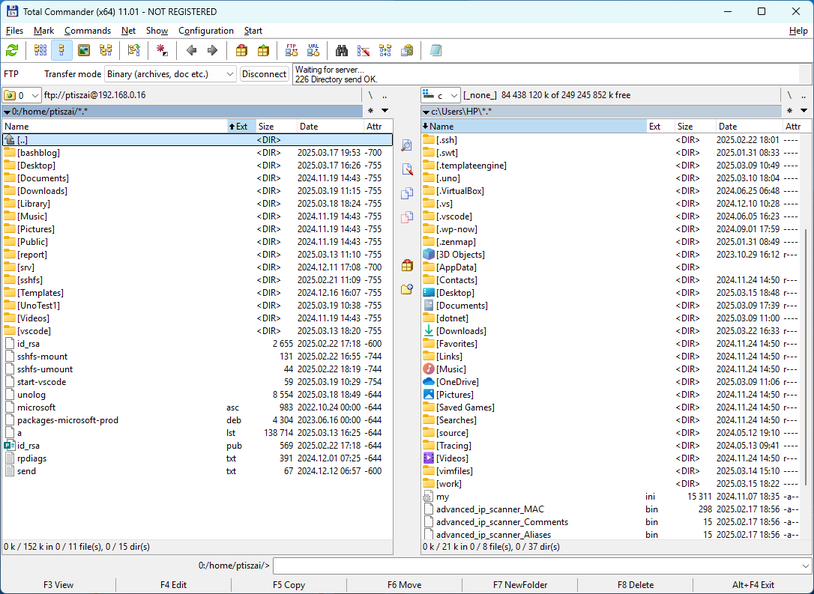
Total Commander is connected to rppi5 (192.168.0.16):
ttconnect

VNC:
Rpi balfelső ikon -> Preferences -> Raspeberry Pi Configuration -> interfaces :
VNC On (server)
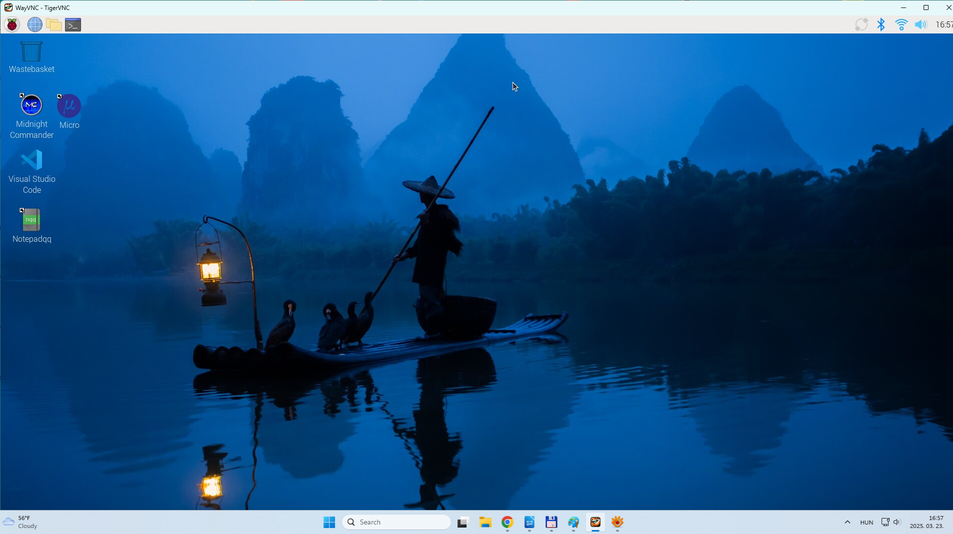
Windows 11 letölteni: vncviewer : vnc
Windows 11 client's image:
vncclient

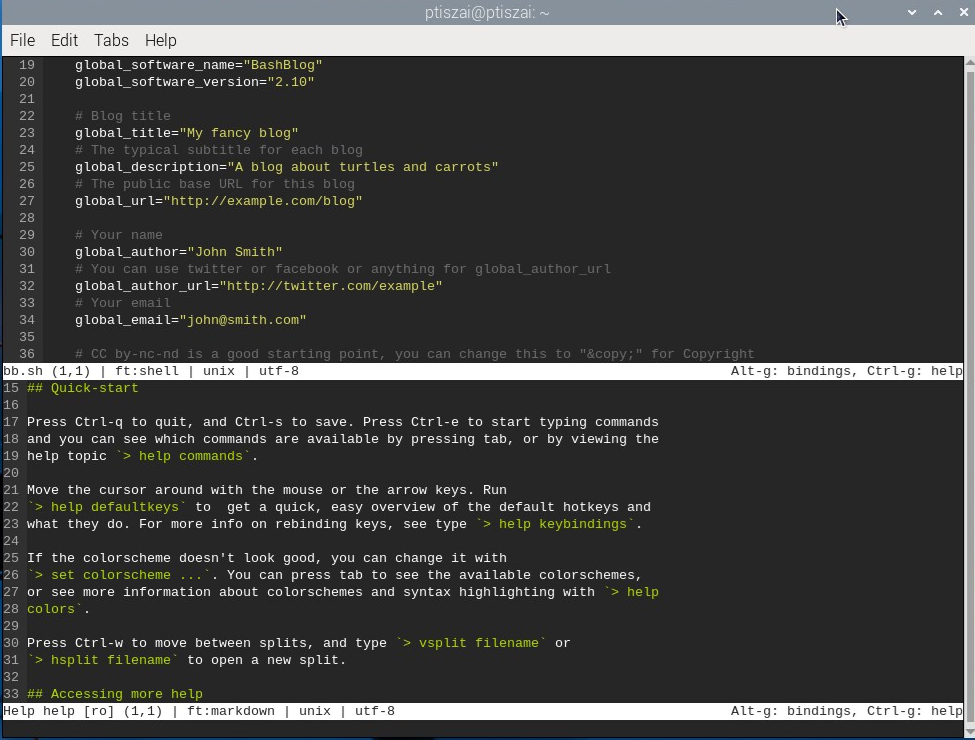
Editorok, amiket érdemes használni Linux alatt.

  • Midnight Commander Editor.-- egyszerű editor
  • nano
apt-get install mc
  • Micro -- közép haladó, én ezt használom.
apt-get install micro
  • Vim -- haladó, főleg programozók használják. Micro editor képe:
    microeditor

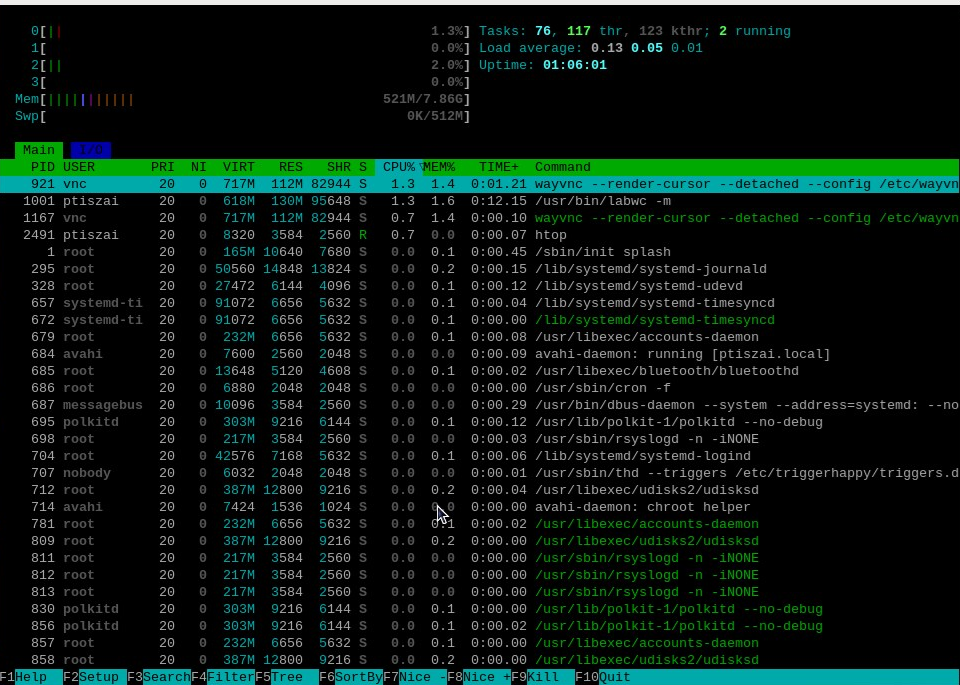
    top, htop process listázó programok Hasonló mint Windows-oknál a "Task Manager " program. A task applikácio default fent van az OS-ben.
apt-get install htask

htask task manager képe:

htask

Raspberry 5.0

Hardware:
Raspberry 5.0

  • CPU: 2.4GHz quad-core 64-bit Arm Cortex-A76 CPU, with cryptography extensions, 512KB per-core L2 caches, and a 2MB shared L3 cache RAM: 2GB LPDDR4X-4267 SDRAM
  • GPU : VideoCore VII GPU, supporting OpenGL ES 3.1, Vulkan 1.2
  • Dual 4Kp60 HDMI® display output with HDR support
  • 4Kp60 HEVC decoder
  • LAN: True Gigabit Ethernet
  • Wi-Fi: Dual-band 802.11ac Wi-Fi®
  • BT: Bluetooth 5.0 / Bluetooth Low Energy (BLE)
  • microSD kártya csatlakozás támogatva a high-speed SDR104 üzemmódot
  • USB: 2× USB 3.0 támogatva a szimultán 5Gbps átvitelt
  • 2× USB 2.0 portok
  • Gigabit Ethernet
  • PoE+ funkció a külön megvásárolható PoE+ HAT bővítő panel segítségével (nem egyezik a Pi 4-hez használt PoE+ HAT típusával!)
  • 2 × 4-lane MIPI kamera/kijelző adó/vevő
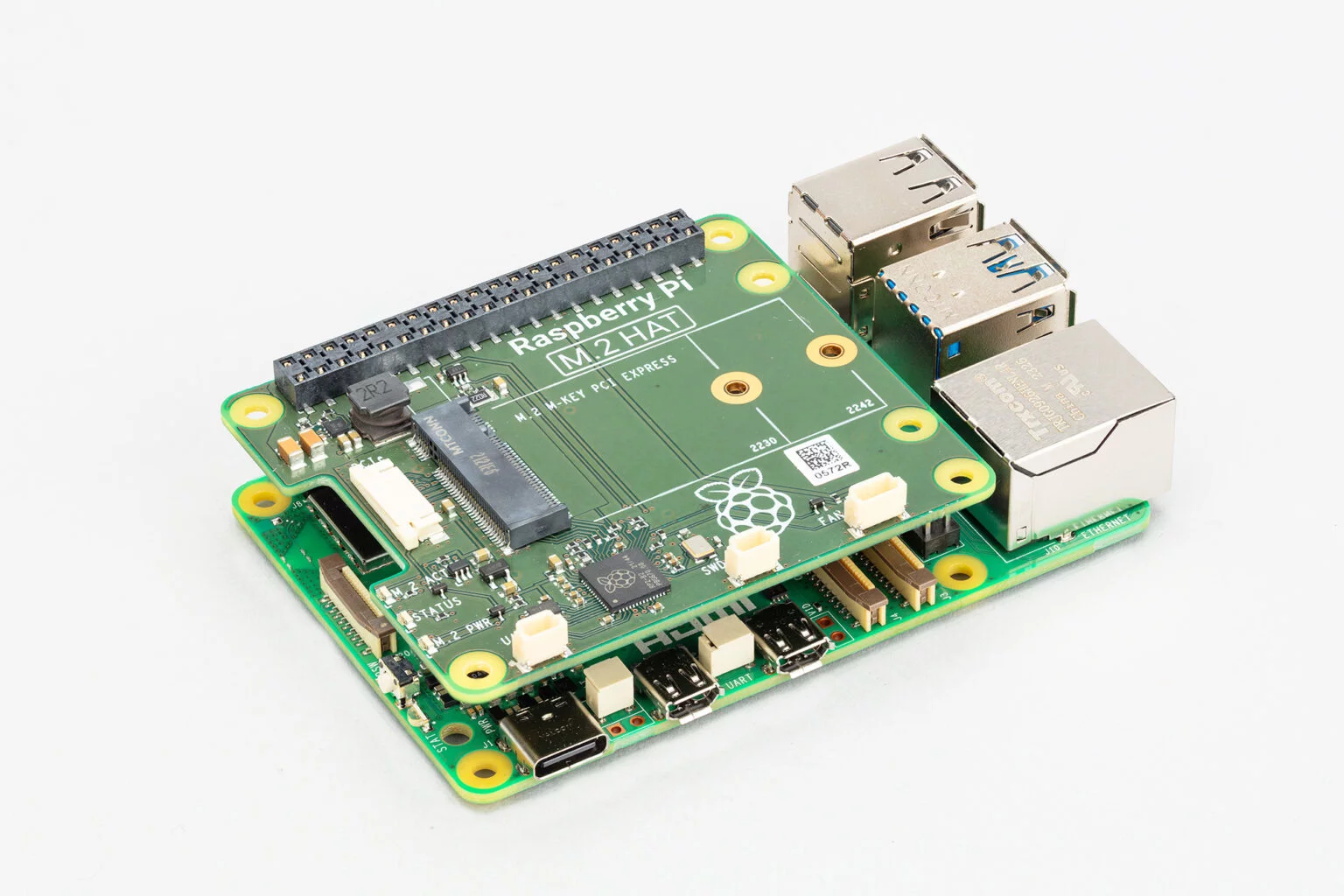
  • PCIe 2.0 interfész gyors perifériákhoz (szükséges hozzá külön M.2 HAT vagy más adapter)
  • 5V/5A DC tápellátás USB-C csatlakozón keresztül, Power Delivery támogatással.
  • Raspberry Pi sztenderd 40-pin tüskesáv csatlakozó
  • Real-time clock (RTC), tápellátás külön csatlakoztatható külső telepről
  • Bekapcsoló gomb (Power button)

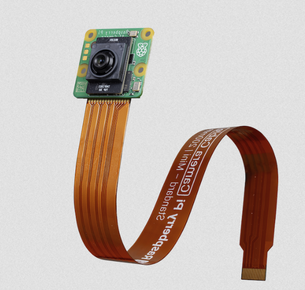
AI kamerát 12 MP Sony IMX500 :

aikamera

Raspberry Pi OS (32 Gbyte) with desktop and recommended software
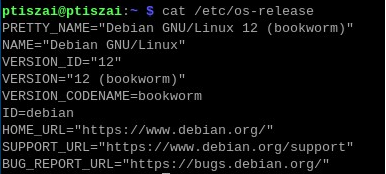
Linux release:

cat /etc/os-release

OS