Windows Display Orientation

Windows Display Orientation Desktop.

Nehézkes a Windows Deaktop esetén a képernyő horizontal / vertical módjának az állítása, ezért készült a program.
Windows .NET Framework 4.8 Instantly flip screen orientation horizontal / vertical with a GUI command.
Because switching between landscape and portrait mode using Display settings on windows takes too many clicks.
Works with multiple monitors and all display orientation modes (landscape, landscape inverted, portrait, portrait inverted).
Preview oroginal Windows 11 Desktop -> System -> Display
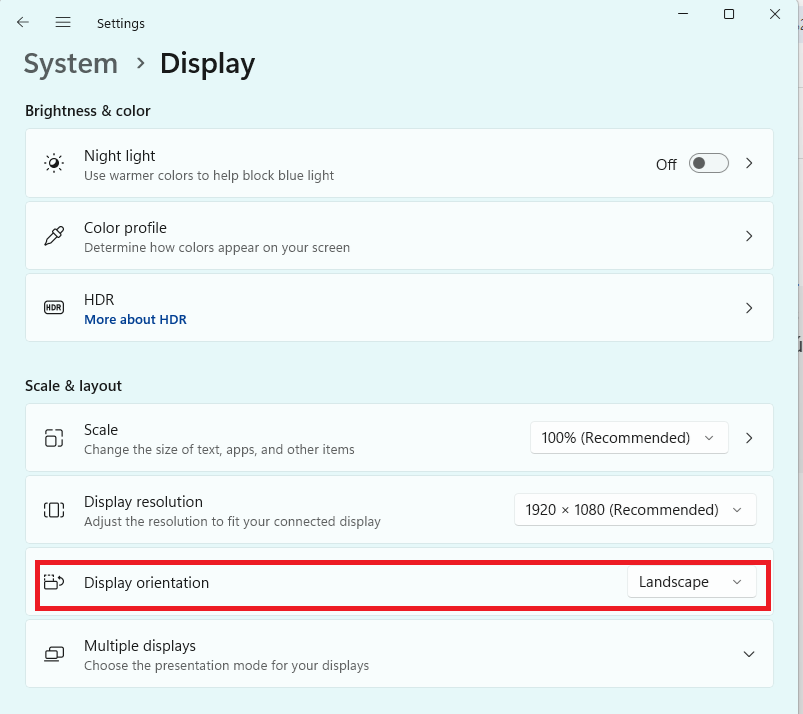
Display

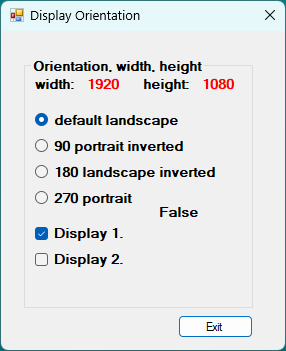
Program képe:

program

4 arguments függvény argumentum kell:
RotateDisplay.cs:

Running(uint deviceID_a, uint rotateMode_a, ref int width_a, ref int height_a) { ... };
  • argument 1 : deviceID_a (0: first main screen, 1: second screen, 2: third etc.)
  • argument 2 : rotateMode_a rotation (0: default landscape, 90: portrait inverted, 180: landscape inverted, 270: portrait)
  • argument 3 : get Width width_a
  • argument 4 : get Height height_a

    hotkeys :
    Billentyűk:
    ESC key : exit
    F2 key : back to default landscape

    .NET Framework 4.8 redistributable :
    NET4.8
    notes :
  • doesn't need to be run as admin
  • rotation can only be set to 4 available values (0, 90, 180, 270), any other value won't work.
  • can't set screen xy position in relation to other screens as possible with Display settings menu.

    Forráskód:
    github
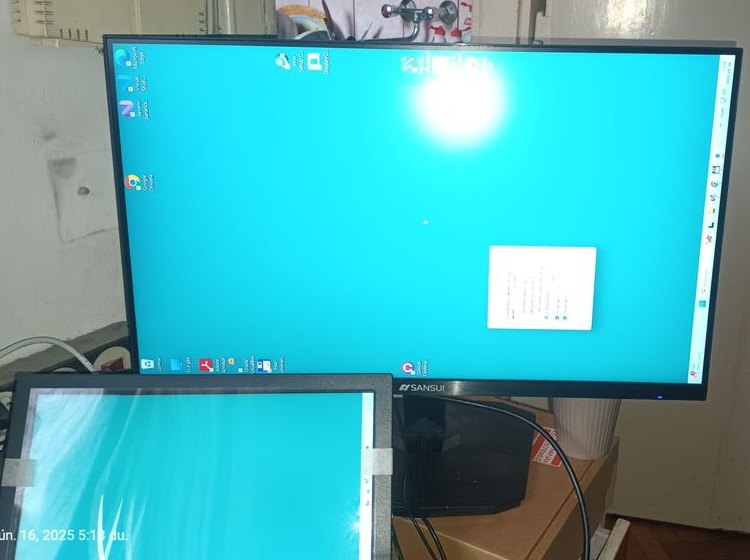
    0 degrees:
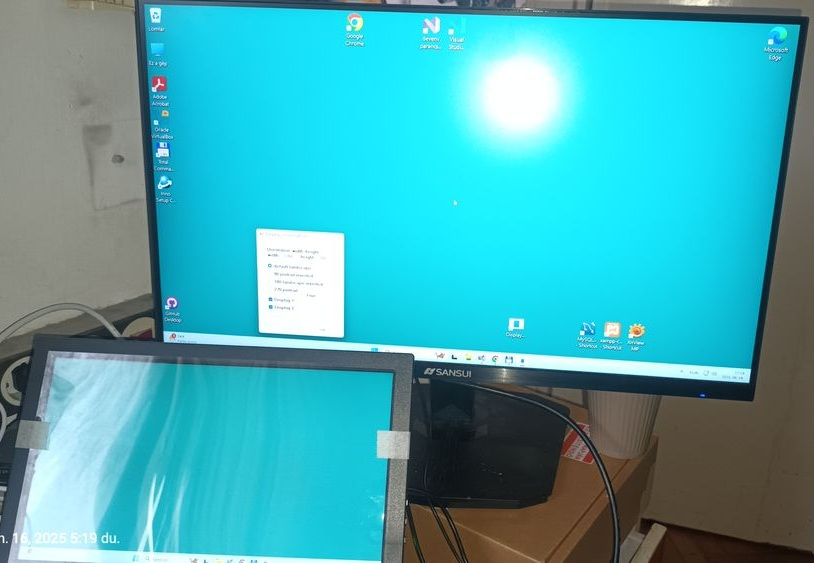
    photo1

    90 degrees:
    photo2

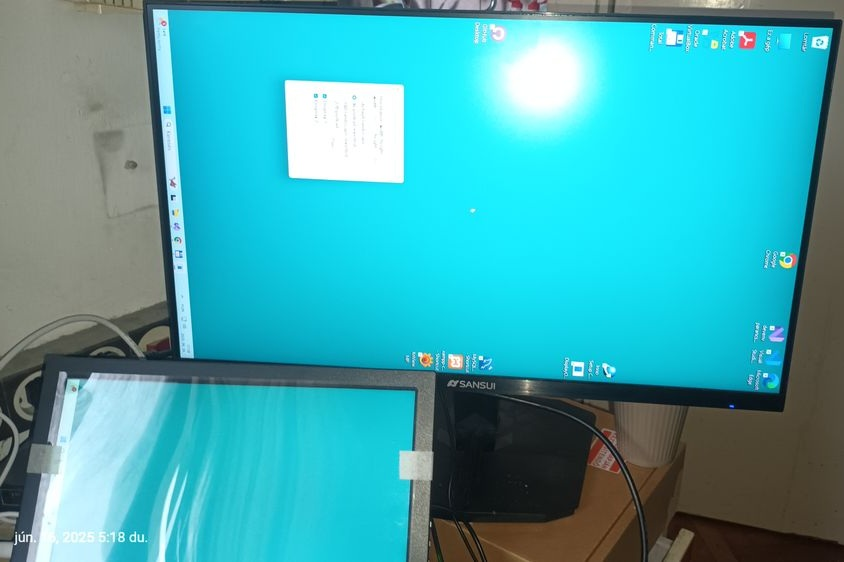
    180 degrees:
    photo3

    270 degrees:
    photo4

Install Uno (WPF) C# on Rpbb5

WPF Windows Presentation Foundation. Uno C# modern framework rendszere.
Uno egy muliplatform-os WPF változata, Open-source framework.
Platformok amin futnak uno programok, és fejleszthető kódbázisok :
windows desktop, android, ios mobil, linux, macOs, web, embedded iot rendszerek.
Uno framework

uno1

Felraktam Visual Studi Code-t, és a .NET 9.0 rendszert a blog szerint és a link szerint:
Getting Started with Uno Platform and the Raspberry Pi
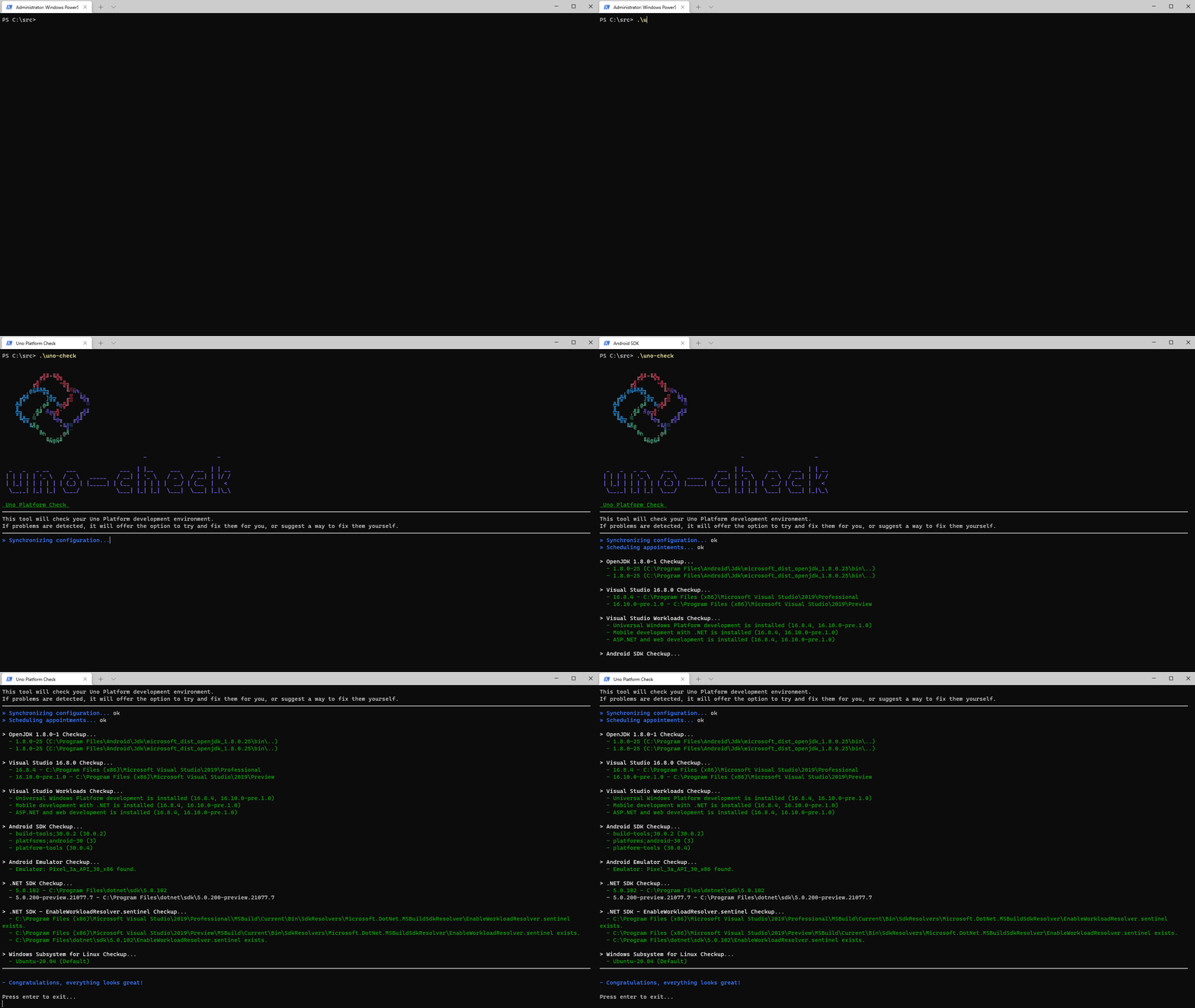
A végén futtattam a

shell uno-chek 

parancsot Lépésaek:
Install and run uno-check
1.) Make sure you have the dotnet SDK installed. Blogban olvasható.
2.) Open a command-line prompt. If you're on Windows, you can run Windows Terminal if you have it installed, or else Command Prompt or Windows Powershell from the Start menu. If you're on Mac, you can run the Terminal.
3.) Install the tool by running the following command from the command prompt:.

shell  dotnet tool install -g uno.check

To update the tool, if you already have an existing one:.

shell  dotnet tool update -g uno.check

4.) Run the tool from the command prompt with the following command:

shell  uno-check

For additional options, see below.
5.) If you get any errors or warnings, run the provided fix, or follow the provided instructions. Run uno-check again to verify that the fixes worked.
6.) Once uno-check gives you the green light, you can get started:

uno1

Próbálkozások után a végső megoldás ez lett:

.\uno-check --verbose –-logfile unolog --skip openjdk --skip androidsdk –skip androidemulator --dev 
--nuget-sources --dotnet-version --dotnet-pre true 


Install .NET9.0 on Rpbb5

Minden frissítése:

sudo apt update
sudo apt install code
wget https://packages.microsoft.com/config/debian/12/packages-microsoft-prod.deb -O packages-microsoft-prod.deb
sudo dpkg -i packages-microsoft-prod.deb
rm packages-microsoft-prod.deb

Telepítse a SDK-t

sudo apt-get install -y dotnet-sdk-9.0
sudo apt-get install -y dotnet-runtime-9.0

NET9.0: